Free · runs in your browser
Room designer
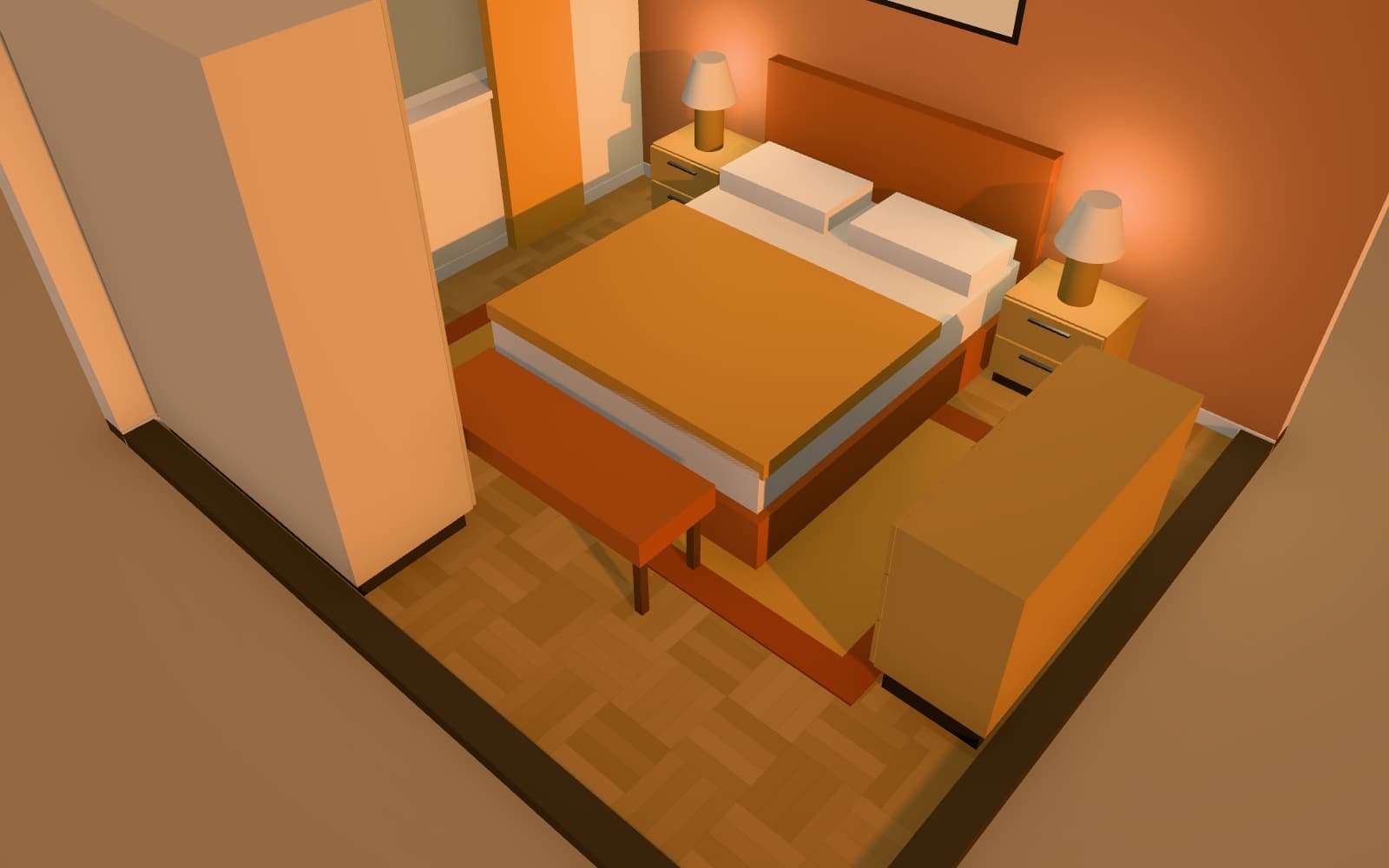
Layout is only half of a room. The other half is surfaces: the floor, the walls, the ceiling and the light falling on them. Arcvelle Studio lets you try paint colours wall by wall, swap floor finishes, add panelling and skirting, and see the result in 3D at different times of day.
What can I change with an online room designer?
In Arcvelle Studio you can change the floor finish from 17 options, paint each side of each wall with one of 19 colours or any custom colour, add wainscot, timber slat or tile panelling, choose skirting, and set the ceiling colour per room. Four lighting presets and colour grades show how those choices look in 3D.
What it does
Features
Paint wall by wall
Choose from 19 paint colours or set any custom colour, separately for each side of a wall, so a feature wall or a contrasting alcove is simple to try.
Floor finishes
Seventeen finishes covering woods, tiles, stone, terrazzo, concrete, carpet, decking and lawn, set room by room.
Panelling and skirting
Add wainscot, timber slats or tile to a wall, and choose a skirting board for each room.
Ceiling colour
Give each room its own ceiling colour to see how a darker or warmer ceiling changes the sense of height.
Light and colour grades
Check finishes under midday sun, golden hour, soft overcast or evening lamps, and try warm, cool, soft film or black and white grades.
How to
How to use the room designer
Step 1: Open a room
Draw your room or open a template that is close to the space you are designing.
Step 2: Set the surfaces
Choose a floor finish, paint the walls, and add panelling, skirting and a ceiling colour.
Step 3: Compare under different light
Switch lighting presets in 3D and save named views of the angles you want to compare.
Step-by-step guide: Floors and paint
Use cases
Who it is for
Choosing a paint scheme
Try a dark accent wall against lighter walls before buying sample pots, and see it in evening light as well as daylight.
Matching floor and walls
See whether a pale oak floor works with green panelling, or whether stone tiles suit a cooler palette.
Refreshing a rented room
Plan a change that relies on furniture, colour and accessories when you cannot alter the fixed finishes.
Questions
Frequently asked questions
Can I paint each wall a different colour?
Yes. Paint is set per wall side, so each face of each wall can have its own colour. Choose one of the 19 preset colours or enter any custom colour you like.
Will the colours on screen match the real paint?
Not exactly. Screens differ, and real paint changes with the light in your room. Use the room designer to narrow down a scheme, then test sample patches on your actual walls before buying.
Can the room designer estimate how much paint I need?
Yes. The bill of materials measures the design and gives paint in litres for two coats, alongside flooring quantities with an 8% waste allowance. Check the figures against the coverage stated on the tin you choose.
Can I see a room at night?
Yes. The evening lighting preset turns lamps on, so you can see how colours and finishes look under artificial light as well as in daylight.
Is the room designer free to use?
Yes. It is part of Arcvelle Studio, which is free and needs no account. Your design is saved in the browser on the device you use.
Can I make a moodboard to go with the room?
Yes. The moodboard maker extracts a palette from your photos, offers style presets and material chips, and exports a board as a PNG 2400 px wide.
Start designing in your browser
Arcvelle Studio is free and needs no account. Your projects stay in this browser.